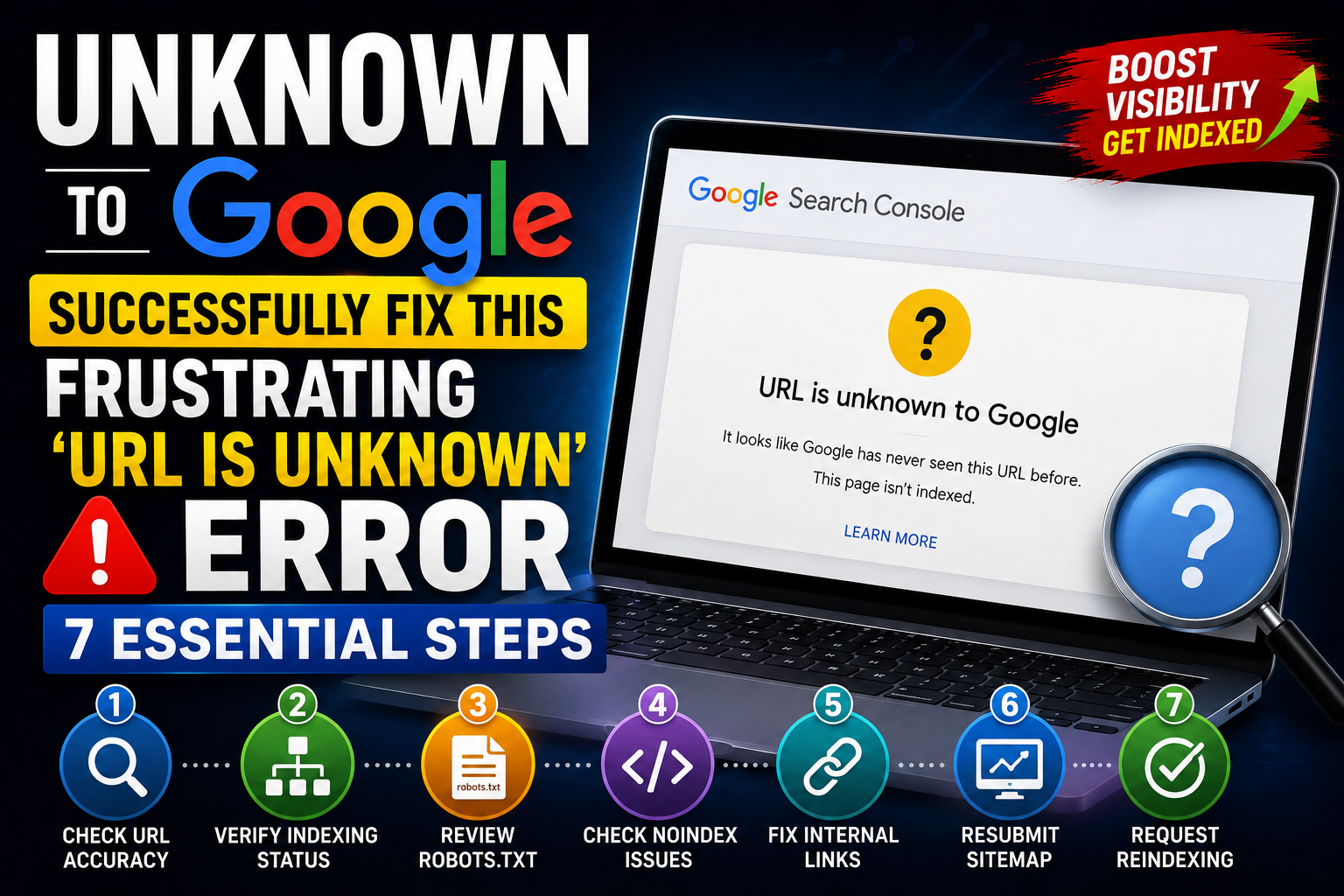
In the intricate world of search engine optimization, few messages can be as perplexing and frustrating as “URL is unknown to Google” in your Google Search Console. This seemingly simple statement carries significant weight, indicating that Google, the world’s dominant search engine, has not yet discovered, crawled, or indexed a particular page on your website. For any website owner, especially those relying on organic search traffic, an unknown to Google page is a missed opportunity – a page that cannot rank, cannot attract visitors, and essentially does not exist in the eyes of potential searchers.
Understanding and resolving this issue is paramount for your site’s visibility and success. It’s not just about getting a page indexed; it’s about ensuring Google can efficiently process your entire site, understand its structure, and present your valuable content to the right audience. This comprehensive guide will demystify the “URL is unknown to Google” status, explore its common causes, provide a step-by-step diagnostic process, and outline effective solutions to bring your URLs into Google’s spotlight.
What Does “URL is Unknown to Google” Really Mean?
When Google Search Console reports “URL is unknown to Google,” it’s a fundamental signal that your page is not in Google’s index. This isn’t merely a temporary hiccup; it means Google has not yet encountered or processed this specific URL in a way that allows it to be considered for search results. Understanding why a URL is unknown to Google is the first step towards resolution.
Let’s break down what “unknown” implies:
- Not Discovered: In many cases, “unknown” means Googlebot (Google’s web crawler) hasn’t even found the URL yet. It hasn’t seen any links pointing to it, nor has it been explicitly told about its existence through a sitemap.
- Not Crawled: If Googlebot hasn’t discovered it, it certainly hasn’t crawled it. Crawling is the process where Googlebot visits a page, reads its content, and follows its links. Without crawling, Google cannot understand what the page is about.
- Not Indexed: The ultimate goal for any public-facing page is to be indexed. Indexing means Google has processed the page, understood its content, and added it to its vast database of web pages, making it eligible to appear in search results. An “unknown” URL is by definition not indexed.
It’s crucial to differentiate “URL is unknown to Google” from other Search Console statuses like “Crawled – currently not indexed” or “Discovered – currently not indexed.” These statuses indicate that Google knows about the URL and has either crawled it or discovered it, but for various reasons (e.g., quality issues, duplicate content, canonicalization), it has chosen not to index it. “Unknown” is a more foundational problem, suggesting a breakdown in the initial discovery or crawling process itself.
This status is a critical SEO signal because a page that is unknown to Google cannot rank, regardless of how high-quality or relevant its content may be. It’s the digital equivalent of a shop existing in a bustling city but having no address or sign – no one can find it.
The Google Search Console Perspective: Where You’ll See It
Google Search Console (GSC) is your primary interface for understanding how Google interacts with your website. The “URL is unknown to Google” status typically appears in a few key areas within GSC:
- URL Inspection Tool: This is where you’ll most frequently encounter this status. When you paste a specific URL into the inspection tool at the top of GSC, if Google has no record of it, it will display “URL is not on Google.” This is often accompanied by details like “Crawling allowed? Unknown” and “Indexing allowed? Unknown.” This tool is invaluable for diagnosing individual page issues and understanding why a URL might be unknown to Google.
- Index Coverage Report: While “URL is unknown” won’t appear as a direct status in the main summary of the Index Coverage report, the underlying cause of an unknown URL can manifest here. For instance, if a page isn’t being discovered, it won’t appear under “Valid” or “Excluded” statuses. If Google has discovered it but hasn’t crawled it yet, it might fall under “Discovered – currently not indexed.” However, for truly unknown to Google URLs, they simply won’t show up in this report at all, which is precisely the problem.
- Sitemaps Report: If you’ve submitted an XML sitemap, this report shows which URLs Google has attempted to process from your sitemap. If a URL is in your sitemap but still “unknown,” it suggests a deeper issue preventing its processing, even with a direct hint from you.
Understanding where to look and what these reports signify is the first step in effective troubleshooting.
Common Causes: Why Google Might Not Know Your URL
The “URL is unknown to Google” status can stem from a variety of issues, ranging from simple oversights to complex technical configurations. Pinpointing the exact cause is crucial for a targeted solution. Understanding these causes is key to resolving why your content might be unknown to Google.
Brand New Content & Crawl Budget
For brand new websites or recently published pages, the reason a URL is unknown to Google might simply be a matter of time.
- Google Hasn’t Found It Yet: Googlebot constantly crawls the web, but it can take time to discover new content, especially on sites with low authority or infrequent updates.
- Lack of Internal Links: If a new page isn’t linked from any existing, indexed pages on your site, Googlebot has no path to discover it.
- No External Backlinks: Backlinks from other websites are a strong signal for discovery. Without them, Google relies solely on internal links and sitemaps.
- Site is New: Brand new websites typically have a very small crawl budget and less frequent visits from Googlebot until they establish authority and a consistent publishing schedule.
Robots.txt Blocking
The robots.txt file is a powerful directive that tells search engine crawlers which parts of your site they are allowed or not allowed to access. An incorrect robots.txt can inadvertently block Googlebot from entire sections or specific URLs, making your pages unknown to Google.
- Disallow Directives: A
Disallow: /your-url/orDisallow: /(for the entire site) directive will prevent Googlebot from crawling the specified content. - Incorrect Syntax: Typos or incorrect formatting in
robots.txtcan lead to unintended blocking. - Caching Issues: Sometimes, changes to
robots.txtmight not be immediately reflected due to server-side caching.
Noindex Tags (Meta Robots & X-Robots-Tag)
A noindex directive explicitly tells search engines not to include a page in their index. This is a common cause for “unknown” status, especially if the page was previously indexed and then de-indexed, or if it was never meant for public consumption, leading to an unknown to Google status.
- Accidental Noindex: Many WordPress SEO plugins (like Yoast SEO or Rank Math) allow you to easily add a
noindextag. It’s common for users to accidentally enable this setting for a page they want indexed, resulting in it being unknown to Google. - Theme/Plugin Settings: Some themes or plugins might automatically add
noindexto certain page types (e.g., custom post types, archive pages) by default. - X-Robots-Tag HTTP Header: This is a server-side directive that functions similarly to the meta robots tag but is sent in the HTTP header. It’s often used for non-HTML files or when you want to
noindexa large number of pages without modifying each one.
Canonicalization Issues
The rel="canonical" tag tells search engines the preferred version of a page when multiple URLs have identical or very similar content. If a page’s canonical tag points to a different URL, Google might treat the current URL as a duplicate and choose not to index it, or to index the canonicalized version instead, leaving it unknown to Google.
- Canonical Pointing to a Different URL: If your page
example.com/page-ahas a canonical tag pointing toexample.com/page-b, Google will likely only indexpage-b. Ifpage-bitself has issues, thenpage-amight remain “unknown.” - Conflicting Signals: A page might have a
noindextag while also having a canonical tag pointing to itself (or another page). Google tries to resolve these conflicts, but it can lead to confusion and non-indexing.
Orphan Pages
An orphan page is a page on your website that is not linked to from any other page on your site. Googlebot primarily discovers pages by following links. If a page is an orphan, it’s very difficult for Googlebot to find it unless it’s explicitly listed in your XML sitemap and Google processes that sitemap effectively, making it unknown to Google.
- Not Discoverable Through Site Navigation: If users can’t navigate to it, Googlebot likely can’t either.
- Missing from Sitemaps: If an orphan page is also excluded from your XML sitemap, its chances of discovery are virtually zero.
Broken Internal Links or Redirect Chains
Googlebot follows links to discover new content. If the internal links pointing to your target URL are broken (404 errors) or lead through a long, complex, or broken redirect chain, Googlebot might give up before reaching the destination page, leaving the destination page unknown to Google.
- 404 Errors: A link pointing to a page that returns a 404 Not Found error.
- Redirect Loops: A series of redirects that lead back to a previous URL in the chain, preventing Googlebot from reaching a final destination.
- Long Redirect Chains: Too many redirects (e.g., A -> B -> C -> D) can sometimes cause Googlebot to drop off.
Site-Wide Indexing Issues
Sometimes, the problem isn’t with a single URL but with your entire website or a large section of it, causing many pages to be unknown to Google.
- WordPress “Discourage Search Engines” Setting: In WordPress, under Settings > Reading, there’s an option “Discourage search engines from indexing this site.” If this is checked, it adds a
noindexdirective to your entire site, making it largely unknown to Google. This is often enabled during development and forgotten before launch. - Password Protection: If your site or a directory is password-protected (e.g., via
.htaccess), Googlebot cannot access it. - Server Errors (5xx): If your server is consistently returning 5xx errors (e.g., 500 Internal Server Error, 503 Service Unavailable), Googlebot cannot access your content.
- DNS Issues: Problems with your Domain Name System (DNS) can prevent Googlebot from even finding your server.
Low-Quality Content or Thin Content
While less likely to cause a truly “unknown” status (Google usually discovers these but chooses not to index them), extremely low-quality, thin, or duplicate content might lead Google to de-prioritize crawling and indexing efforts for certain parts of your site, making parts of your site unknown to Google.
Manual Actions or Security Issues
In rare, severe cases, if your site has received a manual action (penalty) from Google or has been compromised by malware, Google might de-index parts or all of your site. While this typically results in specific messages in GSC, it could manifest as pages becoming unknown to Google if they were previously indexed and then removed.
Step-by-Step Diagnosis: Pinpointing the Problem
Diagnosing the “URL is unknown to Google” status requires a systematic approach. Here’s how to investigate:
1. Start with the URL Inspection Tool
This is your first and most powerful diagnostic tool.
- Go to Google Search Console.
- Paste the problematic URL into the search bar at the top.
- If it says “URL is not on Google,” click “View Crawled Page” (if available) or look for details like:
- Crawling allowed? If “No,” investigate
robots.txtor server issues. - Indexing allowed? If “No,” investigate
noindextags or canonical issues. - Last crawl: If it says “N/A” or a very old date, it confirms a discovery/crawling problem.
- Referring page: This tells you where Google expected to find a link to your page. If it’s empty, it’s an orphan.
- Crawling allowed? If “No,” investigate
This tool is invaluable for diagnosing individual page issues and understanding why a URL might be unknown to Google.
2. Check Your Robots.txt File
- GSC’s Robots.txt Tester: In GSC, navigate to “Legacy tools and reports” > “Robots.txt Tester.” Select your property and paste the URL. It will tell you if the URL is blocked.
- Manual Check: Open your browser and go to
yourdomain.com/robots.txt. Look for anyDisallowdirectives that might be blocking the URL or its parent directory. Ensure there are noDisallow: /orDisallow: /*.php$(if your URL ends in .php) rules that would make your content unknown to Google.
3. Inspect for Noindex Tags
- View Page Source: Open the problematic page in your browser, right-click, and select “View Page Source” (or “Inspect Element” and go to the “Elements” tab). Search for
<meta name="robots" content="noindex">or<meta name="googlebot" content="noindex">within the<head>section. Accidentalnoindextags are a frequent reason why pages remain unknown to Google. - WordPress Specific:
- Yoast SEO/Rank Math: Edit the page/post in WordPress. Scroll down to the SEO plugin’s meta box. Look for settings related to “Allow search engines to show this Post in search results?” or “Robots Meta” and ensure it’s set to “Index.”
- WordPress Reading Settings: Go to Settings > Reading and ensure “Discourage search engines from indexing this site” is unchecked.
- Check HTTP Headers: For advanced users, use a tool like
curl -I yourdomain.com/your-urlor a browser’s developer tools (Network tab) to check for anX-Robots-Tag: noindexin the HTTP response headers.
4. Verify Canonical Tags
- View Page Source: In the
<head>section of your page’s source code, look for<link rel="canonical" href="...">. - Ensure Correctness: Verify that the
hrefattribute points to the exact preferred, indexable version of the current page. It should ideally be a self-referencing canonical (pointing to itself) unless you specifically intend for it to point elsewhere due to duplicate content. Incorrect canonical tags can sometimes confuse Google, making the intended page unknown to Google.
5. Analyze Internal Linking Structure
- Manual Check: Can you navigate to the problematic page by clicking through your website’s main navigation, category pages, or related posts? Strong internal linking helps Google discover pages, preventing them from being unknown to Google.
- Site Crawlers: Tools like Screaming Frog SEO Spider (free for up to 500 URLs), Ahrefs, or SEMrush can crawl your site and identify orphan pages (pages not linked internally) and broken links.
- GSC’s Links Report: Under “Links” in GSC, check “Internal links.” While not perfect for finding orphans, it can show you which pages have the most internal links, indicating where Googlebot might prioritize crawling.
6. Review Your XML Sitemap
- Is the URL Included? Open your XML sitemap (usually
yourdomain.com/sitemap.xmlor generated by your SEO plugin). Ensure the problematic URL is present. - Is the Sitemap Submitted? In GSC, go to “Sitemaps” and verify that your sitemap is submitted and processed without errors. If it shows errors, investigate those first. Ensuring your sitemap is correct and submitted is vital to prevent pages from being unknown to Google.
- Last Read Date: Check the “Last read” date for your sitemap in GSC. If it’s very old, Google might not be processing it regularly.
7. Check Server Response Codes
- Online HTTP Status Checkers: Use tools like HTTP Status Code Checker or
httpstatus.io. - Browser Developer Tools: In your browser, open developer tools (F12), go to the “Network” tab, and refresh the page. Look for the main document request and ensure it returns a
200 OKstatus code. If you see 4xx (client error) or 5xx (server error), that’s a major problem, leaving your content unknown to Google.
8. Consider Site-Wide Settings
- WordPress Reading Settings: Double-check the “Discourage search engines from indexing this site” setting as mentioned in step 3. A simple WordPress setting can make your entire site unknown to Google if left unchecked.
- Password Protection: Ensure your site or the directory containing the URL is not password-protected or behind any authentication that would prevent Googlebot’s access.
- DNS Records: If your entire site is “unknown,” verify your DNS records are correctly pointing to your hosting provider. Use a DNS lookup tool.
Solutions and Recovery Strategies
Once you’ve diagnosed the root cause of a page being unknown to Google, applying the correct solution is straightforward.
For Robots.txt Issues
- Edit
robots.txt: Access yourrobots.txtfile (usually via FTP/SFTP or your hosting control panel’s file manager). Remove or modify theDisallowdirective that’s blocking your URL or directory.- Example: If
Disallow: /blog/is blocking your blog posts, change it toAllow: /blog/or remove the line entirely if you want everything in/blog/to be crawled.
- Example: If
- Test Changes: Use GSC’s Robots.txt Tester to confirm your changes allow crawling for the URL that was previously unknown to Google.
- Request Indexing: After saving changes, use the URL Inspection Tool to “Request Indexing” for the affected URL.
For Noindex Issues
- Remove Meta Noindex Tag:
- WordPress SEO Plugins: Go to the page/post editor, find your SEO plugin’s settings (Yoast, Rank Math), and ensure the “Index” option is selected for search engines.
- Manual Edit: If added manually, remove
<meta name="robots" content="noindex">from the page’s<head>section.
- Disable X-Robots-Tag: If the
noindexis coming from anX-Robots-TagHTTP header, you’ll need to modify your server configuration (e.g.,.htaccessfor Apache, Nginx config) or your website’s backend code. - Uncheck WordPress Setting: Go to Settings > Reading in WordPress and ensure “Discourage search engines from indexing this site” is unchecked.
- Request Indexing: Once the
noindextag is removed, your page will no longer be unknown to Google, and you can use the URL Inspection Tool to “Request Indexing.”
For Canonicalization Issues
- Correct the
rel="canonical"Tag: Ensure thehrefattribute of your canonical tag points to the preferred, indexable version of the page. If it’s the only version, it should ideally be a self-referencing canonical (pointing to itself). Correcting therel="canonical"tag ensures Google indexes the preferred version, resolving the unknown to Google status.