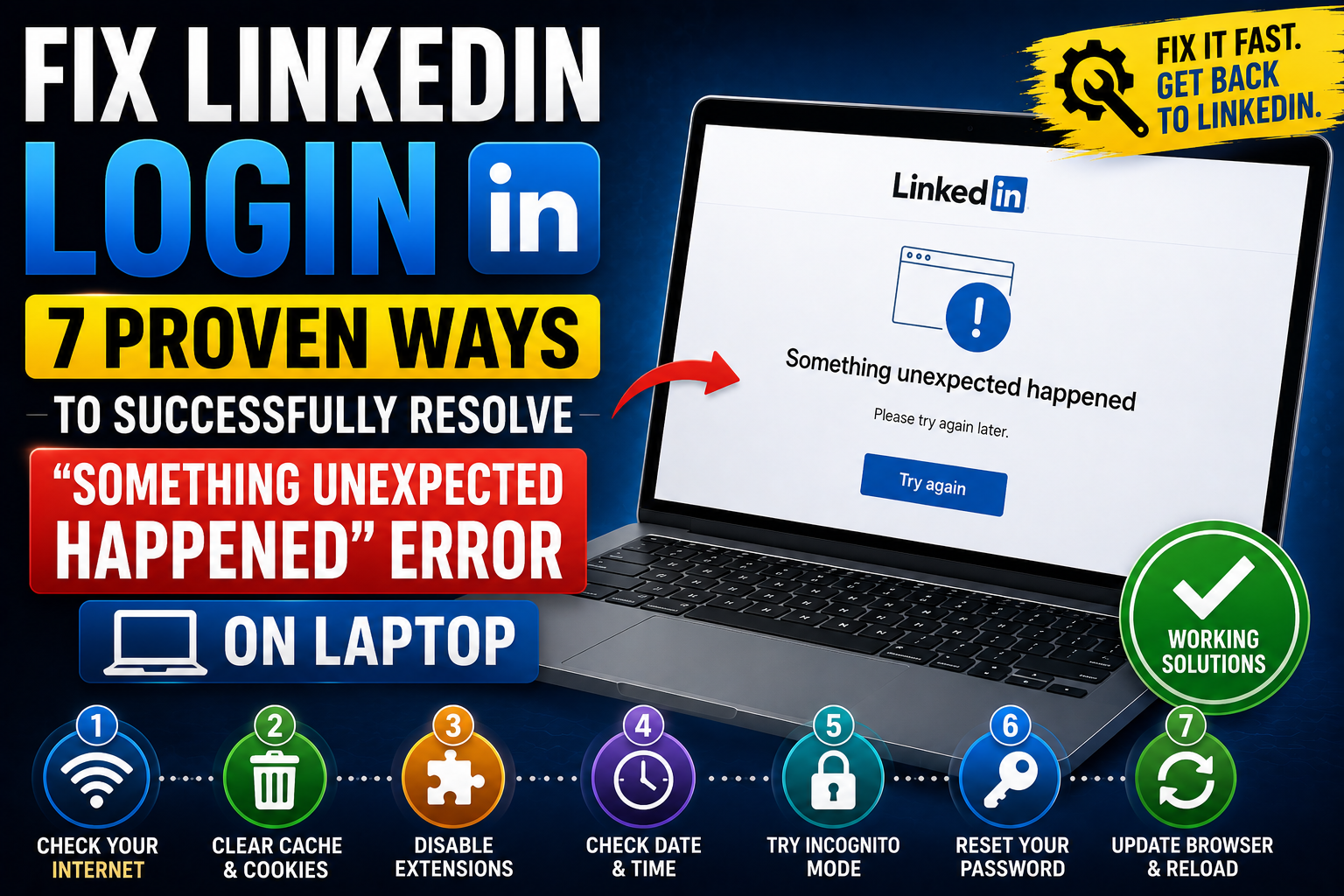
Few things are as frustrating as being locked out of your professional network, especially when you’re trying to access your LinkedIn account on your laptop and are met with a generic, unhelpful error message like “Something unexpected happened.” If you’re struggling to fix LinkedIn login issues and regain access, this vague phrase offers little insight into the problem, leaving you guessing about the cause and solution. Whether you’re trying to apply for a job, connect with colleagues, or simply check your feed, this error can halt your productivity and cause significant annoyance.
The good news is that while the error message itself is ambiguous, the underlying causes are often common and resolvable. This comprehensive guide will walk you through a systematic approach to diagnose and fix LinkedIn login issues related to the “Something unexpected happened” error, ensuring you can regain access to your LinkedIn account on your laptop as quickly as possible. We’ll cover everything from simple quick fixes to more advanced troubleshooting steps, helping you pinpoint the exact issue and get back to networking.
Understanding the “Something Unexpected Happened” Error
Before diving into solutions, it’s helpful to understand what this error message typically signifies. Unlike specific error codes that point to a particular problem (e.g., “invalid password” or “network timeout”), “Something unexpected happened” is a catch-all. It means LinkedIn’s servers or your client (your browser/laptop) encountered an issue that prevented the login process from completing, but the system couldn’t categorize it more precisely.
This could stem from a variety of sources:
- Client-side issues: Problems with your web browser, browser extensions, internet connection, or laptop settings.
- Server-side issues: Temporary glitches or maintenance on LinkedIn’s end.
- Network issues: Problems with your Wi-Fi, router, or internet service provider (ISP).
- Account-specific issues: Problems with your login credentials, two-factor authentication, or even a temporary lock on your account.
Because the error is so broad, our troubleshooting approach will be systematic, starting with the most common and easiest fixes before moving to more complex scenarios to help you fix LinkedIn login problems.
Quick Fixes to Fix LinkedIn Login Issues
Sometimes, the simplest solutions are the most effective. Before delving into deep technical troubleshooting, try these fundamental steps to fix LinkedIn login problems.
1. Check Your Internet Connection
It might sound obvious, but a stable internet connection is paramount.
- Test other websites: Can you access Google, YouTube, or other sites? If not, your internet connection is the problem.
- Restart your Wi-Fi router/modem: Unplug it from the power outlet, wait 30 seconds, and plug it back in. Allow a few minutes for it to fully restart and reconnect.
- Try a different network: If possible, connect your laptop to a different Wi-Fi network (e.g., a mobile hotspot from your phone, a neighbor’s Wi-Fi with permission, or a public network). If you can log in on a different network, the issue is with your primary network, and you’re one step closer to understanding how to fix LinkedIn login for your setup.
2. Verify LinkedIn Server Status
Occasionally, the problem isn’t on your end but with LinkedIn’s servers.
- Check status pages: Visit websites like DownDetector’s LinkedIn status page or IsItDownRightNow and search for “LinkedIn.” These sites aggregate user reports and can indicate if there’s a widespread outage.
- Check LinkedIn’s social media: LinkedIn often posts updates on its official Twitter or other social media channels if there are known service disruptions.
If LinkedIn’s servers are down, all you can do is wait for them to resolve the issue, and then you can attempt to fix LinkedIn login again.
3. Try a Different Browser or Incognito/Private Mode
Your current browser might be causing the conflict.
- Switch browsers: If you’re using Chrome, try Firefox, Edge, or Safari (if on Mac). If you can log in using a different browser, the problem is specific to your original browser.
- Use Incognito/Private Mode: Open an Incognito window (Chrome), Private window (Firefox/Edge), or Private Browsing window (Safari). This mode disables most extensions and doesn’t use existing cookies or cache, providing a clean slate. If you can log in here, a browser extension or cached data is likely the culprit, helping you narrow down how to fix LinkedIn login.
4. Restart Your Laptop
A simple reboot can often clear temporary glitches and refresh your system’s processes, potentially helping to fix LinkedIn login problems.
5. Clear Browser Cache and Cookies
Corrupted or outdated cached data and cookies can frequently interfere with website functionality, including login processes, making it harder to fix LinkedIn login errors.
- Google Chrome:
- Click the three-dot menu in the top right.
- Go to “More tools” > “Clear browsing data.”
- Select a “Time range” (e.g., “All time”).
- Check “Cookies and other site data” and “Cached images and files.”
- Click “Clear data.”
- Mozilla Firefox:
- Click the three-line menu in the top right.
- Go to “Settings” > “Privacy & Security.”
- Scroll down to “Cookies and Site Data” and click “Clear Data…”
- Check both options and click “Clear.”
- Scroll down to “History” and click “Clear History…”
- Select “Everything” for the time range and check “Cache” and “Cookies.”
- Click “OK.”
- Microsoft Edge:
- Click the three-dot menu in the top right.
- Go to “Settings” > “Privacy, search, and services.”
- Under “Clear browsing data,” click “Choose what to clear.”
- Select a “Time range” (e.g., “All time”).
- Check “Cookies and other site data” and “Cached images and files.”
- Click “Clear now.”
- Apple Safari (Mac):
- Go to “Safari” > “Preferences” in the menu bar.
- Go to the “Privacy” tab and click “Manage Website Data…”
- Search for “LinkedIn” and click “Remove.” To clear all, click “Remove All.”
- Go to the “Advanced” tab and check “Show Develop menu in menu bar.”
- Close Preferences. In the menu bar, go to “Develop” > “Empty Caches.”
After clearing, close and reopen your browser before trying to fix LinkedIn login again.
6. Double-Check Login Credentials and Caps Lock
It’s easy to make a typo, especially with complex passwords, which can prevent you from being able to fix LinkedIn login.
- Verify Caps Lock: Ensure your Caps Lock key is not accidentally engaged.
- Carefully re-enter: Type your email and password slowly and deliberately.
- Try copying/pasting: If you store your password in a secure password manager, copy and paste it to eliminate typing errors.
Browser-Specific Troubleshooting
If the quick fixes didn’t work, let’s dive deeper into browser-related issues that might prevent you from being able to fix LinkedIn login.
1. Disable Browser Extensions/Add-ons
Many browser extensions, while useful, can interfere with website scripts, security protocols, or login forms, leading to unexpected errors and making it difficult to fix LinkedIn login.
- Identify and disable:
- Chrome: Click the puzzle piece icon (Extensions) in the top right, then “Manage Extensions.”
- Firefox: Click the three-line menu > “Add-ons and themes” > “Extensions.”
- Edge: Click the three-dot menu > “Extensions” > “Manage extensions.”
- Safari: Go to “Safari” > “Preferences” > “Extensions.”
- Disable all extensions: Turn off all extensions and try logging into LinkedIn. If successful, re-enable them one by one, testing LinkedIn after each, until you find the culprit preventing you from being able to fix LinkedIn login.
- Common culprits: Ad blockers, privacy extensions, VPN extensions, or extensions that modify page content are often the cause.
2. Update Your Browser
An outdated browser might have compatibility issues or security vulnerabilities that prevent proper interaction with LinkedIn’s modern web technologies, thus hindering your ability to fix LinkedIn login.
- Chrome: Click the three-dot menu > “Help” > “About Google Chrome.” It will automatically check for and install updates.
- Firefox: Click the three-line menu > “Help” > “About Firefox.” It will check for updates.
- Edge: Click the three-dot menu > “Settings” > “About Microsoft Edge.” It will check for updates.
- Safari (Mac): Updates are delivered via macOS system updates. Go to “System Settings” (or “System Preferences”) > “General” > “Software Update.”
3. Check Browser Settings
Ensure essential web technologies are enabled to successfully fix LinkedIn login.
- JavaScript: LinkedIn, like most modern websites, heavily relies on JavaScript.
- Chrome: Settings > Privacy and security > Site Settings > JavaScript. Ensure “Sites can use JavaScript” is selected.
- Firefox: Type
about:configin the address bar, accept the risk, search forjavascript.enabled, and ensure its value istrue. - Edge: Settings > Cookies and site permissions > JavaScript. Ensure “Allowed (recommended)” is toggled on.
- Safari: Preferences > Security. Ensure “Enable JavaScript” is checked.
- Cookies: LinkedIn needs to set cookies to manage your session. Ensure third-party cookies are not completely blocked, or at least that LinkedIn is an exception.
- Check your browser’s “Privacy and security” settings to ensure cookies are allowed.
Network-Related Issues
Beyond basic internet connectivity, deeper network configurations can sometimes block access, requiring further steps to fix LinkedIn login.
1. Flush Your DNS Cache
Your computer stores a cache of DNS (Domain Name System) lookups to speed up website access. If this cache becomes corrupted or outdated, it can prevent your laptop from correctly resolving LinkedIn’s address, making it impossible to fix LinkedIn login without clearing it.
- Windows:
- Open Command Prompt as an administrator (search for “cmd,” right-click, “Run as administrator”).
- Type
ipconfig /flushdnsand press Enter. - You should see a message confirming the DNS resolver cache was successfully flushed.
- Mac:
- Open Terminal (Applications > Utilities > Terminal).
- Type
sudo dscacheutil -flushcache; sudo killall -HUP mDNSResponderand press Enter. - You’ll be prompted for your administrator password. Enter it and press Enter (characters won’t appear as you type).
2. Disable VPN or Proxy
If you’re using a Virtual Private Network (VPN) or a proxy server, it might be routing your connection through a server that LinkedIn has flagged as suspicious or is experiencing issues, which can prevent you from being able to fix LinkedIn login.
- Temporarily disable: Turn off your VPN client or proxy settings and try logging in.
- Check browser proxies: Some browsers have their own proxy settings. Ensure these are not enabled or are correctly configured.
3. Check Firewall and Antivirus Settings
Your computer’s firewall or antivirus software might be overly aggressive, mistakenly blocking LinkedIn’s connection as a security threat, thereby complicating efforts to fix LinkedIn login.
- Temporarily disable: As a test, temporarily disable your firewall and antivirus software. Be extremely cautious when doing this and re-enable them immediately after testing. If you can log in, you’ll need to add an exception for LinkedIn or your browser in your security software’s settings.
- Review blocked sites: Check your antivirus or firewall settings for any blocked websites or applications that might include LinkedIn.
4. Try a Different Network
As mentioned earlier, connecting to a different network (e.g., your phone’s mobile hotspot) can quickly determine if the issue is specific to your home or office network, which helps you understand how to fix LinkedIn login for your specific environment.
Account-Specific Problems
Sometimes, the “unexpected” part relates directly to your LinkedIn account, requiring specific account-related actions to fix LinkedIn login.
1. Reset Your Password
Even if you’re certain you’re entering the correct password, a reset can sometimes resolve underlying account synchronization issues or clear a temporary lockout, helping you to fix LinkedIn login.
- Go to the LinkedIn login page.
- Click “Forgot password?” or “Reset password.”
- Follow the prompts to receive a password reset link via email or phone.
- Create a new, strong password.
- Try logging in with the new password.
2. Two-Factor Authentication (2FA) Issues
If you have 2FA enabled, issues with the authentication process can cause login failures, making it harder to fix LinkedIn login.
- Incorrect codes: Ensure you’re entering the most recent code from your authenticator app or SMS. Codes are time-sensitive.
- Time sync: If using an authenticator app (like Google Authenticator or Authy), ensure your laptop’s system time and the authenticator app’s time are perfectly synchronized. Mismatched times can lead to invalid codes.
- For authenticator apps: Check the app’s settings for a “Time correction for codes” or “Sync now” option.
- For your laptop: Ensure your system’s date and time are set to “Set automatically” and that the correct time zone is selected.
- Backup codes: If you set up 2FA, you should have received backup codes. Use one of these if your primary method isn’t working.
- Lost/damaged device: If you’ve lost the device used for 2FA, you’ll need to use backup codes or contact LinkedIn support for account recovery.
3. Account Lockout or Suspension
LinkedIn might temporarily lock your account if it detects unusual login activity, multiple failed login attempts, or suspicious behavior. In rare cases, accounts can be suspended for violating terms of service. In such cases, you’ll need to follow specific steps to fix LinkedIn login.
- Check for email notifications: LinkedIn usually sends an email if your account has been locked or suspended, explaining the reason and next steps. Check your spam/junk folders.
- Contact LinkedIn Support: If you suspect a lockout or suspension and haven’t received an email, this is when you’ll need to reach out to LinkedIn directly (see “Contacting LinkedIn Support” section).
System-Level Considerations
Problems at your operating system level can also indirectly affect browser functionality and login processes, impacting your ability to fix LinkedIn login.
1. Operating System Updates
Ensure your laptop’s operating system (Windows or macOS) is up to date. Updates often include security patches, bug fixes, and compatibility improvements that can resolve underlying issues affecting web browsing.
- Windows: Go to “Settings” > “Update & Security” > “Windows Update.”
- Mac: Go to “System Settings” (or “System Preferences”) > “General” > “Software Update.”
2. Date and Time Settings
Incorrect date and time settings on your laptop can cause issues with secure connections (SSL/TLS certificates) to websites like LinkedIn, leading to login errors and preventing you from being able to fix LinkedIn login.
- Set automatically: Go to your laptop’s date and time settings and ensure “Set time automatically” and “Set time zone automatically” are enabled.
3. Malware/Virus Scan
Malware or viruses on your laptop can interfere with network connections, browser processes, or even steal login credentials, leading to unexpected errors and making it difficult to fix LinkedIn login.
- Run a full scan: Use a reputable antivirus program (e.g., Windows Defender, Malwarebytes, Avast, Norton) to perform a full system scan. Remove any detected threats.
Advanced Troubleshooting & Last Resorts
If you’ve exhausted all the above steps, it’s time for more advanced checks or to seek direct assistance to fix LinkedIn login.
1. Check Your Hosts File
The hosts file on your computer maps domain names to IP addresses. If it has been modified (sometimes by malware or certain software) to block LinkedIn’s domains, you won’t be able to access the site, and you’ll need to adjust it to fix LinkedIn login.
- Windows:
- Open Notepad as an administrator (search for “Notepad,” right-click, “Run as administrator”).
- Go to “File” > “Open.”
- Navigate to
C:WindowsSystem32driversetc. - In the “File name” box, change “Text Documents (.txt)” to “All Files (.*)”.
- Select and open the file named
hosts. - Look for any lines containing “linkedin.com” or “www.linkedin.com.” If you find any, delete those lines (but be careful not to delete other entries unless you know what you’re doing).
- Save the file and try logging in.
- Mac:
- Open Terminal (Applications > Utilities > Terminal).
- Type
sudo nano /etc/hostsand press Enter. - Enter your administrator password.
- Look for any lines containing “linkedin.com.” If found, delete them.
- Press
Control+Xto exit, thenYto save, andEnterto confirm the filename. - Try logging in.
2. Try a Different Device
If you have another laptop, a desktop computer, or even your smartphone with the LinkedIn mobile app, try logging in from there.
- If it works on another device: This strongly suggests the problem is specific to your primary laptop or its configuration. You can then focus your troubleshooting efforts on that particular machine.
- If it doesn’t work on any device: This points to a network-wide issue (e.g., your router, ISP) or an account-specific problem (e.g., locked account, incorrect password).
3. Contact LinkedIn Support
If you’ve meticulously gone through all the troubleshooting steps and still can’t log in, it’s time to contact LinkedIn’s official support to fix LinkedIn login.
- How to contact: Since you can’t log in, you’ll need to use their general help center or a public contact method.
- Visit the LinkedIn Help Center:
https://www.linkedin.com/help/linkedin - Look for options like “Contact Us” or “Get help without signing in.”
- You might need to use a general inquiry form or browse common issues to find a contact link.
- Visit the LinkedIn Help Center:
- What information to provide:
- Your LinkedIn email address or associated phone number.
- A detailed description of the error (“Something unexpected happened” when trying to log in on laptop).
- All the troubleshooting steps you’ve already tried (e.g., cleared cache, tried different browsers, reset password, checked 2FA).
- The exact date and time the issue started.
- Any recent changes to your laptop or network settings.
- Screenshots of the error message, if possible.
- Be patient: Support responses can take some time, especially for complex issues.
Prevention Tips
To minimize the chances of encountering the “Something unexpected happened” error again:
- Regularly clear browser cache and cookies: Make it a habit to clear these periodically, or at least for sites you frequently have issues with.
- Keep your browser and OS updated: Enable automatic updates for your browser and operating system to ensure you always have the latest fixes and security patches.
- Use a strong, unique password: This prevents unauthorized access and potential account lockouts due to suspicious activity.
- Enable Two-Factor Authentication (2FA): While it can sometimes cause login hurdles, 2FA significantly enhances your account security. Keep your backup codes in a safe place.
- Be mindful of browser extensions: Only install extensions from trusted sources and periodically review them. Disable or remove any you don’t use or that seem to cause issues.
- Maintain good network hygiene: Periodically restart your router and ensure your network is secure.
Conclusion
Encountering the “Something unexpected happened” error when trying to access your LinkedIn account on your laptop can be a major roadblock. However, by systematically working through the troubleshooting steps outlined in this guide, you significantly increase your chances of identifying and resolving the root cause and ultimately, to fix LinkedIn login. Patience and methodical problem-solving are key to successfully addressing these issues.
Remember to start with the easiest solutions and gradually move to more complex ones. Most often, a quick clear of cache, a browser switch, or a password reset will do the trick to fix LinkedIn login. If all else fails, LinkedIn’s support team is there to assist. With these strategies in hand, you should be able to overcome this frustrating error and get back to leveraging the power of your professional network. For those interested in other digital tools, such as AI content and image generators, you might find Artifism v6.6.0 – AI Content & Image Generator SaaS – nulled Free Download a useful resource.