
How to Fix Cloudflare Error 520: Web Server is Returning an Unknown Error
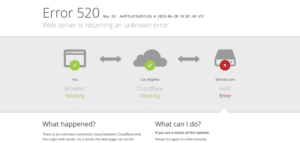
Encountering a Cloudflare Error 520 can be one of the most frustrating experiences for any website owner or administrator. Unlike more specific error codes, the message “Web server is returning an unknown error” offers little immediate insight into the root cause. This generic nature often leaves users feeling lost, struggling to pinpoint the problem.
At its core, Error 520 indicates a critical issue in the communication between Cloudflare and your website’s origin server (where your website files and database are hosted). Cloudflare attempted to connect to your server, but your server responded with something that Cloudflare couldn’t understand or process – an empty, malformed, or unexpected response that prevented the successful proxying of the request.
This comprehensive guide will demystify Cloudflare Error 520, explaining its common causes and providing a systematic, step-by-step approach to diagnose and resolve the problem. By understanding the underlying mechanisms and knowing where to look, you can efficiently troubleshoot and restore your website’s availability.
Understanding Cloudflare Error 520
Before diving into solutions, it’s crucial to grasp what Error 520 signifies. When a user requests your website, Cloudflare acts as a reverse proxy, intercepting the request, performing various optimizations and security checks, and then forwarding the request to your actual web server (the “origin server”). Cloudflare then receives the response from your origin server and delivers it back to the user.
An Error 520 occurs when:
- Cloudflare sends a valid request to your origin server.
- Your origin server responds to Cloudflare, but the response is problematic. This response could be:
- Completely empty.
- Malformed (e.g., incorrect HTTP headers).
- Exceeding Cloudflare’s header size limits.
- Returning an unexpected and uninterpretable HTTP status code or an invalid HTTP response altogether.
- Crashing unexpectedly during the request processing.
Key Takeaway: While Cloudflare displays the error, the problem almost always lies with your origin server’s behavior or configuration, specifically how it responds to Cloudflare’s requests. Cloudflare is merely reporting that it received an unprocessable response from your server.
Common Scenarios Leading to Error 520
Several situations can trigger a 520 error:
- Origin server crashes: The web server software (Apache, Nginx, LiteSpeed, IIS) itself crashes or becomes unresponsive during request processing.
- Malformed or empty responses: A PHP script, Node.js application, or other backend process executes but fails to produce a proper HTTP response, or generates an empty response body or invalid headers.
- HTTP header size exceeding limits: Your server generates exceptionally large HTTP headers (often due to too many or very large cookies, or custom debugging headers), which Cloudflare cannot process.
- Invalid HTTP response: The server sends a response that doesn’t conform to HTTP standards, such as missing required elements or using invalid characters.
- Resource limits: The server is under heavy load, running out of memory, or hitting CPU limits, causing processes to fail or time out.
- Incorrect
php.inisettings or application configuration: Settings likemax_execution_time,memory_limit, or specific application configurations lead to script failures that result in an unparsable response.
Prerequisites for Troubleshooting
To effectively troubleshoot Error 520, you’ll need access to several key areas:
- Hosting Control Panel: Access to cPanel, Plesk, DirectAdmin, or your custom hosting dashboard.
- SSH/SFTP Access: Command-line access (SSH) to your server is often essential for checking logs and restarting services. SFTP access is useful for retrieving log files.
- Server Log Files: Knowing where to find your web server (Apache, Nginx, LiteSpeed, IIS) and application (PHP, Node.js, Python) error logs.
- Cloudflare Account: Access to your Cloudflare dashboard for pausing the service, checking firewall rules, and reviewing general settings.
- Basic Understanding of Web Servers: Familiarity with your web server software (Apache, Nginx, etc.) and how your application runs.
Step-by-Step Troubleshooting Guide
This guide is structured into phases, moving from initial checks to deeper investigations of your origin server.
Phase 1: Initial Checks & Quick Fixes
Start with these fundamental steps to rule out common issues and gather initial information.
1. Check Your Origin Server Status
The most basic cause of a 520 error is an unresponsive origin server.
- Bypass Cloudflare: Attempt to access your website directly using your server’s IP address. You might need to temporarily modify your local
hostsfile to map your domain to the origin IP, or use a tool likecurlorwgetwith the-H "Host: yourdomain.com"header to simulate a request.- If it works directly: Your server is online and serving content. The issue is specific to how it interacts with Cloudflare.
- If it doesn’t work directly: Your origin server is likely down or unresponsive, indicating a more fundamental hosting issue. Contact your hosting provider immediately.
- Hosting Provider Status Page: Check your hosting provider’s status page or social media for any announced outages or maintenance in your region.
- Restart Web Server: If you have SSH access or a control panel option, try restarting your web server software (Apache, Nginx, LiteSpeed, IIS). This can resolve temporary glitches.
- Example (Linux/Apache):
sudo systemctl restart apache2orsudo service apache2 restart - Example (Linux/Nginx):
sudo systemctl restart nginxorsudo service nginx restart
- Example (Linux/Apache):
- Monitor Server Resources: Use tools like
htop,top, or your hosting panel’s resource monitor to check for unusually high CPU, RAM, or disk I/O usage. A server struggling with resources can become unresponsive.
2. Temporarily Pause Cloudflare
Pausing Cloudflare allows you to confirm if your origin server is capable of serving your website without Cloudflare’s proxying.
- How to Pause:
- Log in to your Cloudflare dashboard.
- Select the domain experiencing the error.
- Go to the “Overview” tab.
- Scroll down to the “Advanced actions” section on the right sidebar.
- Click “Pause Cloudflare on Site.”
- Test Your Site: After pausing, wait a few minutes for DNS changes to propagate, then try accessing your website again.
- If your site works: This confirms your origin server is operational, and the problem likely stems from an interaction issue between your server and Cloudflare. Re-enable Cloudflare and proceed with deeper troubleshooting.
- If your site still doesn’t work: The problem is solely with your origin server, regardless of Cloudflare. Focus your efforts on server-side diagnostics.
- Important: Remember to re-enable Cloudflare after testing to restore its benefits.
3. Review Cloudflare Dashboard for Hints
While Error 520 points to your origin, Cloudflare’s dashboard might offer clues.
- Cloudflare Ray ID: Note the “Cloudflare Ray ID” displayed on the error page. This unique identifier is crucial if you need to contact Cloudflare support.
- Security Events/Firewall Rules:
- Navigate to the “Security” > “Events” or “WAF” section in your Cloudflare dashboard.
- Check for any recent firewall blocks or challenges that occurred around the time of the 520 errors. It’s rare for Cloudflare’s WAF to cause a 520 directly, but an overly aggressive rule could theoretically interfere with a legitimate Cloudflare-to-origin request, or your server might be configured to reject Cloudflare’s IP range if misconfigured.
- If you find suspicious blocks, consider temporarily disabling or reviewing the associated WAF rules for testing purposes.
Phase 2: Deep Dive into Origin Server Configuration & Logs
This phase involves a more in-depth investigation of your web server and application. Server logs are your best friend here.
4. Examine Server Error Logs (Crucial Step)
Your server’s error logs are the most vital resource for diagnosing Error 520. They often contain the exact message indicating why your server failed to respond properly.
- Common Log Locations (Linux):
- Apache:
- Main error log:
/var/log/apache2/error.logor/var/log/httpd/error_log - Virtual host specific: Often within the virtual host configuration directory, e.g.,
/var/www/yourdomain.com/logs/error.log
- Main error log:
- Nginx:
error.log: Often/var/log/nginx/error.log
- LiteSpeed:
- Check the LiteSpeed WebAdmin Console or common log directories like
/usr/local/lsws/logs/error.log
- Check the LiteSpeed WebAdmin Console or common log directories like
- PHP:
- PHP error logs might be separate, defined in
php.ini(e.g.,error_log = /var/log/php/error.log) or within web server logs.
- PHP error logs might be separate, defined in
- Apache:
- Common Log Locations (Windows/IIS):
- Event Viewer: Check “Windows Logs” > “Application” and “System.”
- IIS Logs: Typically found in
C:inetpublogsLogFileswithin subdirectories for each site (e.g.,W3SVC1).
- What to look for:
- Fatal PHP errors:
Fatal error:,Allowed memory size of X bytes exhausted,Maximum execution time of Y seconds exceeded. - Database connection issues:
Can't connect to MySQL server,SQLSTATE[HY000]. - Web server crashes: Messages like
segmentation fault,child process died,core dump. - Permissions issues:
Permission denied. - Application-specific errors: Any errors from your CMS (WordPress, Joomla, Drupal) or custom application.
- Time Correlation: Pay close attention to the timestamps. Correlate log entries with the exact times the 520 errors were observed on Cloudflare.
- Fatal PHP errors:
Example Log Entry (PHP Fatal Error):
[Mon Oct 26 10:30:45.123456 2023] [php:error] [pid 12345] [client 192.0.2.1:54321] PHP Fatal error: Allowed memory size of 134217728 bytes exhausted (tried to allocate 262144 bytes) in /var/www/html/wp-content/plugins/bad-plugin/bad-plugin.php on line 123
This clearly indicates a memory limit issue caused by a plugin.
5. Check Web Server Configuration
Misconfigurations in Apache, Nginx, or other web servers can lead to malformed or incomplete responses.
- Invalid Headers or Empty Responses:
- Ensure your server is sending valid HTTP headers. Custom modules or application code that directly manipulates headers could introduce issues.
- A common cause for an empty response is a script that dies prematurely without outputting anything.
- Apache (
.htaccess): Check your.htaccessfiles for any incorrectRewriteRuleorHeaderdirectives that might be causing internal server errors or malformed responses. Invalid syntax can lead to a 500 error which Cloudflare might interpret as a 520. - Nginx: Review your Nginx configuration files (
nginx.conf, site-specific.conffiles in/etc/nginx/sites-available/) for issues like:- Missing
fastcgi_param SCRIPT_FILENAME $document_root$fastcgi_script_name; - Incorrect
proxy_passorfastcgi_passdirectives. - Missing or malformed
add_headerdirectives. - Too many
returnstatements or infinite redirect loops.
- Missing
- Excessive Header Sizes:
- Cloudflare has a limit on HTTP header sizes (typically 32KB). If your application sends extremely large cookies, numerous custom debugging headers, or very long
Locationheaders for redirects, it can trigger a 520. - Troubleshooting:
- Temporarily remove or reduce the size of cookies your application sets.
- Disable any debugging tools that add extensive headers.
- Check for redirects that are creating unusually long
Locationheaders.
- This is particularly common with applications that create many long session cookies or have issues with caching plugins adding excessive headers.
- Cloudflare has a limit on HTTP header sizes (typically 32KB). If your application sends extremely large cookies, numerous custom debugging headers, or very long
How to Fix Excluded by ‘Noindex’ Tag Error in Google Search Console
7 Most Common Website Issues Our Crawler Finds
6 Ways to Fix the 400 Bad Request Error
6. Review Application-Specific Issues (PHP, Node.js, Python, etc.)
The application running on your server is frequently the source of the 520 error.
- Script Timeouts:
- Long-running scripts that exceed the server’s or application’s execution time limits can lead to an incomplete or empty response.
- PHP: Check
max_execution_timeandmax_input_timein yourphp.inifile. If set too low for complex operations, scripts will be terminated.- Example (increase limits):
max_execution_time = 300 ; 5 minutes
max_input_time = 300   ; 5 minutes
Remember to restart your web server or PHP-FPM after changing
php.ini.
- Example (increase limits):
- Nginx/PHP-FPM: Also check
fastcgi_read_timeoutin your Nginx configuration. - Apache (for PHP as module):
Timeoutdirective inhttpd.confor virtual host configuration.
- Memory Limits:
- Applications consuming too much memory can crash or be terminated by the server.
- PHP: Check
memory_limitinphp.ini. Increase it if your application’s error logs indicate memory exhaustion.- Example:
memory_limit = 256Mor512M
- Example:
- Monitor your server’s RAM usage closely.
- Crashing Processes:
- A segmentation fault (segfault) or an unhandled exception in your application (especially in C/C++ extensions or native code) can cause the web server process handling the request to crash. This results in no response or an empty response.
- Look for core dump files or specific application crash logs, if available.
- Invalid Redirects/Rewrites:
- While often leading to 3xx or 4xx errors, an incorrectly configured redirect or rewrite rule that creates an infinite loop or points to a non-existent internal resource can sometimes result in an unparsable response.
- Carefully review any recent changes to
.htaccessfiles (Apache) or Nginx rewrite rules.
7. Database Issues
If your application cannot connect to its database, it often fails to render content, resulting in an incomplete or empty HTTP response.
- Check Database Server Status: Ensure your MySQL, PostgreSQL, or other database server is running.
- Review Database Logs: Look for errors related to connections, queries, or server stability.
- Credentials and Permissions: Verify that your application’s database credentials are correct and have the necessary permissions.
- Connection Limits: Your database server might be hitting its maximum connection limit. Increase
max_connectionsin your database configuration if necessary (e.g.,my.cnffor MySQL). - Corrupt Database: Rarely, a corrupt database can cause application failures. Run database repair tools if you suspect corruption.
Phase 3: Advanced Troubleshooting & Escalation
If you’ve gone through the previous steps and are still facing Error 520, it’s time to leverage external expertise.
8. Contact Your Hosting Provider
Your hosting provider has deep access to your server’s environment, system logs, and monitoring tools that you might not.
- Provide Detailed Information: When contacting them, include:
- The exact time(s) the Error 520 occurred.
- The specific URL(s) affected.
- Any relevant error messages you found in your server logs.
- The Cloudflare Ray ID (if available).
- Confirmation that you’ve already paused Cloudflare and tested direct server access (and the results).
- Any recent changes you made to your website or server configuration.
- Their Capabilities: They can check:
- Underlying server health and hardware issues.
- Network connectivity problems.
- Advanced web server configurations.
- Resource limits and quotas that might be impacting your server.
9. Contact Cloudflare Support
If your hosting provider confirms that your server is running perfectly and responding correctly without Cloudflare, but the 520 error persists with Cloudflare enabled, then it’s time to contact Cloudflare support.