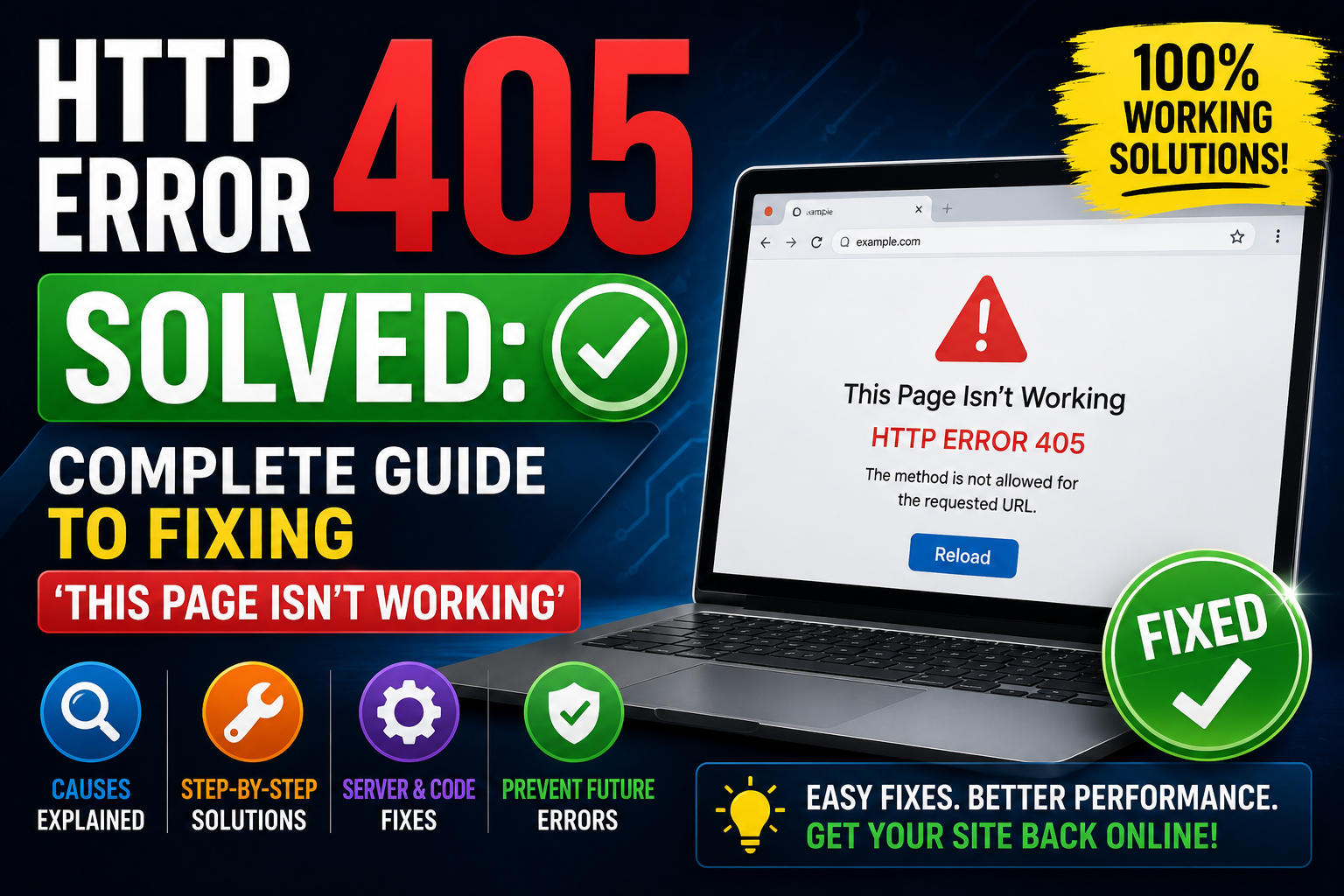
When navigating the vast landscape of the internet, encountering an error message can be a frustrating roadblock. Among the myriad of HTTP status codes, one that often leaves users and site owners scratching their heads is the “HTTP ERROR 405: Method Not Allowed,” frequently accompanied by the user-friendly but unhelpful message: “This page isn’t working If the problem continues, contact the site owner.”
This particular error signifies a fundamental communication breakdown between your browser and the web server. Unlike a 404 “Not Found” error, which indicates the requested resource doesn’t exist, a 405 error confirms that the resource does exist, but the specific HTTP method used to access it (e.g., GET, POST, PUT, DELETE) is not allowed or supported by the server for that particular resource.
Understanding the nuances of the 405 error is crucial for both end-users seeking to access content and, more critically, for site owners and developers striving to maintain a seamless user experience. This comprehensive guide will delve deep into what an HTTP 405 error means, why it occurs, and provide actionable steps for troubleshooting and resolving it, ensuring your website remains accessible and functional.
Understanding HTTP ERROR 405: Method Not Allowed
At its core, the internet operates on a request-response model, primarily using the Hypertext Transfer Protocol (HTTP). When your browser wants to retrieve a webpage, it sends an HTTP request to a server. This request isn’t just a simple “give me this page”; it includes a specific “method” that tells the server what kind of action the browser wants to perform.
What Does “Method Not Allowed” Truly Mean?
HTTP methods, also known as verbs, define the type of operation to be performed on the identified resource. The most common methods include:
- GET: Used to request data from a specified resource. It should only retrieve data and have no other effect on the data. (e.g., loading a webpage).
- POST: Used to send data to a server to create/update a resource. (e.g., submitting a form, uploading a file).
- PUT: Used to update a resource or create a new one if it doesn’t exist.
- DELETE: Used to delete a specified resource.
- HEAD: Similar to GET, but it asks for a response identical to that of a GET request, but without the response body.
- OPTIONS: Used to describe the communication options for the target resource.
When you encounter an HTTP 405 error, it means:
- The server received your request.
- The server understood the request.
- The requested resource exists on the server.
- However, the server is configured to not allow the specific HTTP method you used to interact with that resource.
For instance, if you try to submit a form (which typically uses a POST request) to a URL that is only configured to accept GET requests (like a static image file or a read-only page), the server will respond with a 405 error. It’s not that the page doesn’t exist; it’s that you’re trying to perform an action on it that isn’t permitted.
How 405 Differs from 404 (Not Found)
It’s important to distinguish the 405 error from its more common cousin, the 404 “Not Found” error.
- 404 Not Found: The server cannot find the requested resource. The URL might be wrong, or the resource has been moved or deleted. The server doesn’t even know if it could handle a request for that resource because it doesn’t exist at the specified location.
- 405 Method Not Allowed: The server knows the resource exists, but it refuses to accept the HTTP method specified in the request. The URL is correct, but the action you’re trying to perform on it is disallowed.
This distinction is key for troubleshooting, as it immediately narrows down the potential causes.
Common Scenarios Leading to a 405 Error
Several factors can lead to an HTTP 405 error, ranging from simple user mistakes to complex server misconfigurations:
- Incorrect Server Configuration: This is often the most common culprit. The web server (Apache, Nginx, IIS) might be explicitly configured to disallow certain HTTP methods for specific directories or files.
- Application-Level Restrictions: The website’s underlying application code (e.g., PHP, Python, Node.js) or framework (WordPress, Laravel, Django) might have routing rules or security policies that restrict which methods can be used for particular endpoints.
- Plugin/Theme Conflicts (WordPress Specific): In content management systems like WordPress, a newly installed or updated plugin or theme might introduce code that inadvertently restricts HTTP methods, especially for AJAX requests, form submissions, or custom API endpoints.
- Firewall or Security Rules: A Web Application Firewall (WAF) or server-level security module (like Mod_security) might block certain HTTP methods if they are deemed suspicious or outside of defined rules.
- Incorrect API Requests: When working with APIs, developers might send a request using the wrong HTTP method (e.g., sending a GET request to an endpoint that expects a POST for data creation).
- Typographical Errors in URLs or Code: A subtle typo in a URL or within the application’s code can sometimes lead to the server misinterpreting the request or routing it to an incorrect handler that doesn’t support the method.
Understanding these scenarios provides a roadmap for effective troubleshooting, whether you’re an end-user or a site administrator.
Troubleshooting HTTP ERROR 405 for Users (End-Users)
If you’re just trying to browse a website and encounter a 405 error, there are a few simple steps you can take before contacting the site owner. These steps focus on ruling out client-side issues.
Basic Browser-Side Checks
Your web browser can sometimes be the source of temporary glitches.
- Clear Browser Cache and Cookies: Stored data can sometimes become corrupted or outdated, leading to unexpected errors.
- How to: In most browsers, you can find this option in the settings under “Privacy and Security” or “History.” Clear data for “all time.”
- Try a Different Browser: If the error persists in your primary browser, try accessing the page using another browser (e.g., Chrome, Firefox, Edge, Safari). This helps determine if the issue is browser-specific.
- Check the URL for Typos: A simple typo in the URL can sometimes lead to a 405 error if the mistyped URL points to an existing resource that doesn’t support the default GET method (though a 404 is more common here). Double-check the address bar.
- Disable Browser Extensions: Some browser extensions, particularly those related to security, ad-blocking, or network proxying, can interfere with how requests are sent or processed. Try disabling them one by one, or test the page in an incognito/private browsing window (which typically disables extensions by default).
- Try Incognito/Private Mode: This mode usually starts with a clean slate, without cached data or extensions. If the page loads correctly here, it points to a cache, cookie, or extension issue.
Network and Device Checks
While less common for a 405 error, ruling out network or device-specific problems is good practice.
- Restart Your Router/Modem: A simple network device restart can resolve temporary connectivity or routing issues.
- Try a Different Device: If possible, try accessing the website from another computer, tablet, or smartphone. This helps determine if the issue is isolated to your specific device.
- Check Your Internet Connection: Ensure your internet connection is stable and working correctly. While a 405 isn’t typically a connectivity error, a flaky connection could theoretically lead to malformed requests.
What to Do When All Else Fails
If you’ve exhausted the client-side troubleshooting steps and the error persists, the problem almost certainly lies with the website’s server or application.
- Contact the Site Owner/Support: This is the most effective next step. Look for a “Contact Us” page, email address, or social media presence.
- Provide Details: When reporting the issue, be as specific as possible:
- The exact URL you were trying to access.
- The full error message you received (“This page isn’t working… HTTP ERROR 405”).
- What you were doing when the error occurred (e.g., “trying to submit a contact form,” “clicking a link”).
- The browser you were using and its version.
- Any troubleshooting steps you already tried (clearing cache, different browser).
- The date and time the error occurred.
Detailed information helps site owners diagnose and resolve the problem much faster.
Troubleshooting and Fixing HTTP ERROR 405 for Site Owners (Developers/Admins)
For site owners, an HTTP 405 error is a critical issue that needs prompt attention. Resolving it requires a systematic approach, diving into server configurations, application code, and security settings.
Step 1: Understand the Error Context
Before diving into technical fixes, gather as much information as possible about the error.
- When Did It Start? Did the error appear after a recent update, a new plugin installation, a code deployment, or a server configuration change? Pinpointing the timeline is crucial.
- Is It Site-Wide or Specific Pages/Functions? Does the error affect every page, or only specific URLs, forms, or API endpoints? This helps narrow down the scope.
- Check Server Access Logs and Error Logs: These logs are your best friends.
- Access Logs: Show every request made to your server, including the HTTP method used, the requested URL, and the server’s response code. Look for 405 entries and the associated requests.
- Error Logs: Provide more detailed information about server-side issues, application errors, or configuration problems that might lead to a 405.
- Where to find them: For Apache, typically in
/var/log/apache2/access.logand/var/log/apache2/error.log(or similar paths). For Nginx, usually in/var/log/nginx/access.logand/var/log/nginx/error.log. For cPanel/Plesk, look for “Logs” or “Error Logs” in your control panel.
Step 2: Verify Server Configuration (Apache/Nginx/IIS)
Server configuration files are a frequent source of 405 errors, as they dictate which HTTP methods are allowed for specific resources.
Apache (.htaccess file and main config)
Apache servers often use .htaccess files for directory-specific configurations, which can override global settings.
- Inspect
.htaccessFiles:- Look for
LimitorLimitExceptdirectives that restrict HTTP methods. For example:<LimitExcept GET POST> Order Deny,Allow Deny from all </LimitLimitExcept>This snippet would block any method except GET and POST. If your application needs PUT or DELETE, this would cause a 405.
- Check for
RewriteRuleconflicts. Sometimes, complex rewrite rules can inadvertently redirect requests to handlers that don’t support the original method. - Ensure
AllowOverride Allis set for the directory in your main Apache configuration (httpd.confor site-specific virtual host file) if you intend for.htaccessfiles to be processed. If it’s set toNone,.htaccessfiles will be ignored, potentially leading to unexpected behavior if your application relies on them. - Temporarily disable
.htaccess: As a diagnostic step, you can temporarily rename the.htaccessfile (e.g., to.htaccess_old). If the error disappears, the problem is within that file. Remember to rename it back after testing.
- Look for
- Examine Main Apache Configuration:
- Check your virtual host configuration files (
.conffiles in/etc/apache2/sites-available/or similar). - Look for
LimitorLimitExceptdirectives within<Directory>,<Location>, or<Files>blocks. - Ensure
mod_rewriteis enabled if your application uses it (a2enmod rewrite).
- Check your virtual host configuration files (
Nginx (nginx.conf / site-specific conf)
Nginx configurations are typically more centralized.
- Inspect
nginx.confand Site-Specific Configuration:- Look for
limit_exceptdirectives withinlocationblocks. For example:location /api/users { limit_except GET POST { deny all; } # ... other directives for /api/users }This would return a 405 for any method other than GET or POST to the
/api/usersendpoint. - Ensure
fastcgi_param REQUEST_METHODis correctly passed to PHP-FPM or other upstream servers if you’re serving dynamic content. A misconfiguration here could cause the application to incorrectly interpret the method. - Check for
ifstatements orrewriterules that might be redirecting requests unexpectedly.
- Look for
IIS (web.config)
For Windows servers running IIS, the web.config file is the primary place for configuration.
- Inspect
web.config:- Look for
<verbs>elements within<handlers>or<security>sections that explicitly deny certain HTTP methods. - Check for
requestFilteringrules that might be blocking methods. - Ensure that the correct handler mappings are in place for the requested file types and methods.
- Look for
Step 3: Inspect Application Code (PHP/WordPress Specific)
If server configurations appear correct, the problem likely lies within your application’s code or its dependencies.
WordPress Core, Themes, and Plugins
WordPress sites are prone to 405 errors due to plugin or theme interactions.
- Deactivate Plugins One by One:
- This is the most common troubleshooting step for WordPress. Deactivate all plugins and re-test. If the error disappears, reactivate them one by one, testing after each, until the culprit is found.
- Pay special attention to security plugins, form plugins, or plugins that create custom post types or API endpoints, as these are more likely to implement method restrictions.
- Switch to a Default Theme:
- If a plugin isn’t the issue, switch to a default WordPress theme (e.g., Twenty Twenty-Four). If the error resolves, your theme is the problem.
- Check for Custom Code Snippets:
- If you’ve added custom code to your
functions.phpfile, a child theme, or a custom plugin, review it for any logic that might restrict HTTP methods or interfere with WordPress’s default routing. - Look for code related to
$_SERVER['REQUEST_METHOD']or conditional logic based on HTTP methods.
- If you’ve added custom code to your
- File Permissions: Incorrect file permissions can sometimes lead to the server being unable to execute scripts or access resources correctly, which might manifest as a 405 if the application logic fails. Ensure standard WordPress file permissions (e.g., 644 for files, 755 for directories).
- Corrupted WordPress Core Files: While rare, a corrupted WordPress core file could theoretically lead to issues. Re-uploading fresh core files (excluding
wp-content) can sometimes help.
Custom Applications (PHP, Python, Node.js, etc.)
For custom-built applications, the focus shifts to routing and controller logic.
- Review Routing Configurations:
- Most modern web frameworks (Laravel, Symfony, Django, Express.js) have a centralized routing file or system. Ensure that the route for the problematic URL explicitly allows the HTTP method being used.
- Example (Laravel):
// This route only allows GET
Route::get('/users', 'UserController@index');

// This route allows POST
Route::post('/users', 'UserController@store');

// This route allows GET and POST
Route::match(['get', 'post'], '/contact', 'ContactController@showForm');
If you send a PUT request to
/users, the server would return a 405 if no PUT route is defined for that URI.
- Check API Endpoints:
- If the error occurs on an API endpoint, verify that the API documentation matches the actual implementation regarding allowed HTTP methods for each endpoint.
- Ensure the client making the API request is using the correct method.
- Inspect Controller Logic:
- Within your application’s controllers or handlers, look for conditional statements that might restrict access based on
$_SERVER['REQUEST_METHOD']or similar logic. - Ensure that the function or method being called actually exists and is accessible.
- Within your application’s controllers or handlers, look for conditional statements that might restrict access based on
Step 4: Check Web Application Firewall (WAF) or Security Plugins
Security layers, while essential, can sometimes be overzealous.
- Mod_security Rules: If your server uses Mod_security (a popular WAF module for Apache), certain rules might be blocking specific HTTP methods, especially if they are deemed malicious or unusual.
- Check Mod_security logs for entries related to the 405 error.
- You might need to temporarily disable Mod_security rules for the affected URL or method, or whitelist the specific request (exercise caution here).
- Cloudflare (or other CDN/WAF) Settings: If you use a CDN or external WAF like Cloudflare, Sucuri, or Wordfence (for WordPress), check their settings.
- Cloudflare has “WAF Rules” and “Page Rules” that can block HTTP methods.
- WordPress security plugins often have options to restrict HTTP methods or block suspicious requests. Temporarily disabling the plugin (or specific rules within it) can help diagnose.
- Server-Level Firewall: While less common for a 405 (which is an HTTP-level error, not a network block), ensure no firewall rules are inadvertently interfering with standard HTTP traffic.
Step 5: Review DNS and CDN Settings
While less directly related to HTTP methods, it’s worth a quick check.
- DNS Records: Ensure your DNS records (A, CNAME) are correctly pointing to your server. An incorrect DNS resolution could theoretically lead to requests being sent to the wrong server, which might then respond with a 405 if it’s not configured for your application.
- CDN Cache: If you’re using a CDN, clear its cache. Outdated cached content or misconfigurations at the CDN level could sometimes contribute to unexpected errors.
Step 6: Server-Side Scripting Language Configuration (PHP)
For PHP applications, ensure the PHP environment is correctly configured.
- PHP-FPM/mod_php: Verify that your web server (Apache/Nginx) is correctly passing requests to PHP-FPM or using
mod_php. Misconfigurations here can lead to requests not being processed by your application at all, which might result in a 405 if the server falls back to a default handler that doesn’t support the method. php.inisettings: While less likely to cause a 405 directly, reviewphp.inifor any unusual settings that might impact request processing or script execution.
Step 7: Database Issues (Less Common but Possible)
A corrupted database table or a database connection issue can sometimes indirectly lead to a 405 error. If your application attempts to perform a database operation (e.g., insert, update) as part of a POST or PUT request, and the database is unreachable or corrupted, the application might fail in a way that results in a 405 if its error handling isn’t robust.
- Check your database server status.
- Review application logs for database connection errors.
- Use tools like
phpMyAdminormysqlcheckto repair database tables if necessary.
Step 8: Version Control and Rollback
If you use version control (like Git) for your website’s code or configuration files, this can be a lifesaver.
- Rollback to a Previous Version: If the error appeared after a recent deployment or configuration change, rolling back to a known working version is often the quickest way to restore functionality while you investigate the root cause in a staging environment.